 TheWoWDB
How to
How to Make a WoW Twitch Emote
Turn a World of Warcraft character render into a Twitch channel emote: which files Twitch wants, where to upload them, and what to check before you submit.
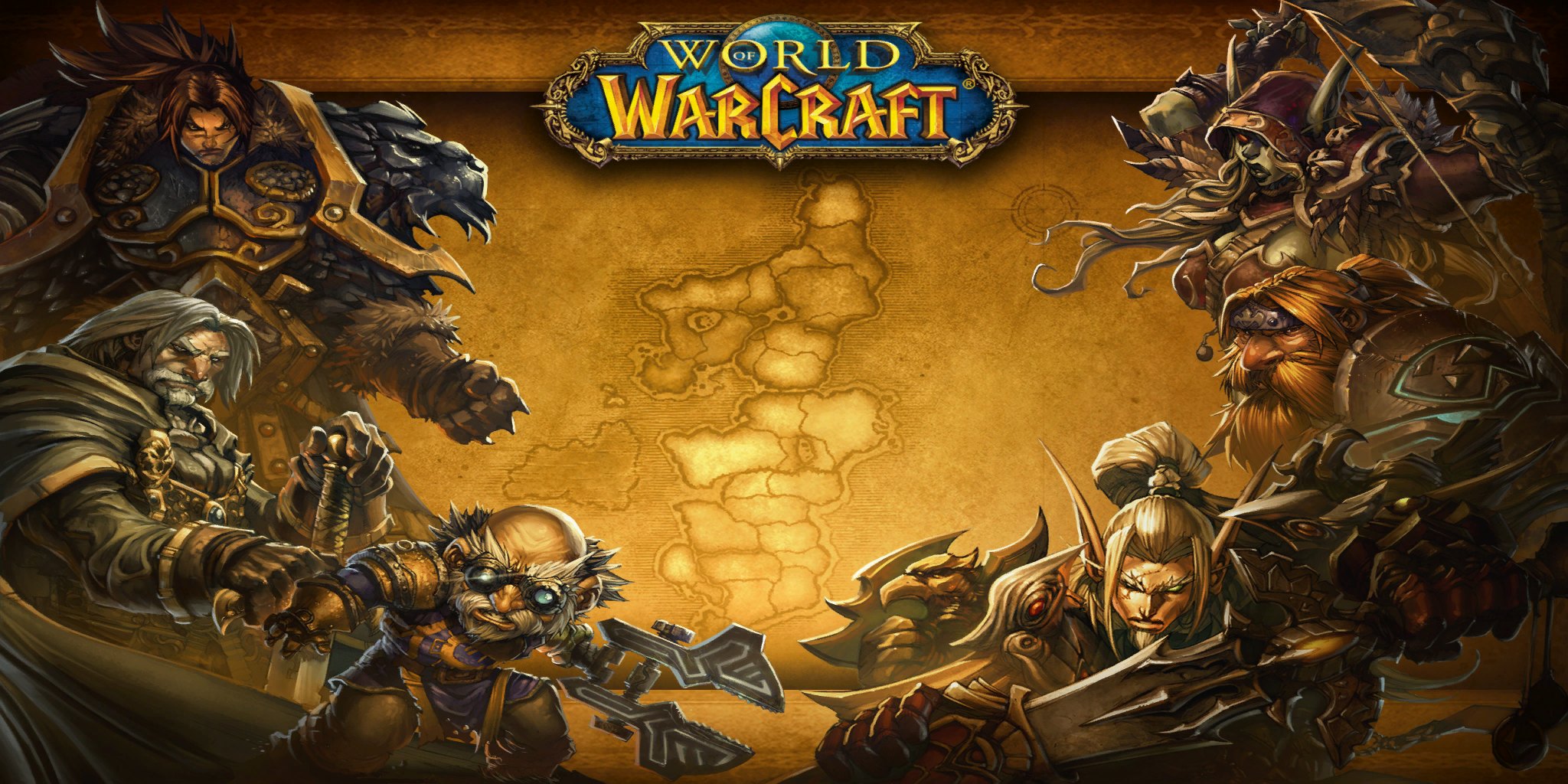
Art: Eastern Kingdoms loading screen · Blizzard Entertainment.
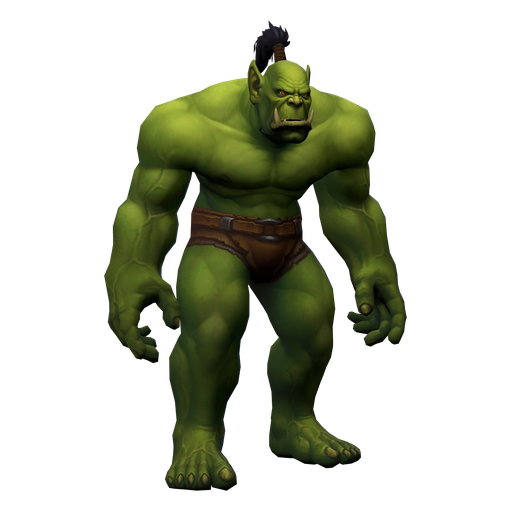
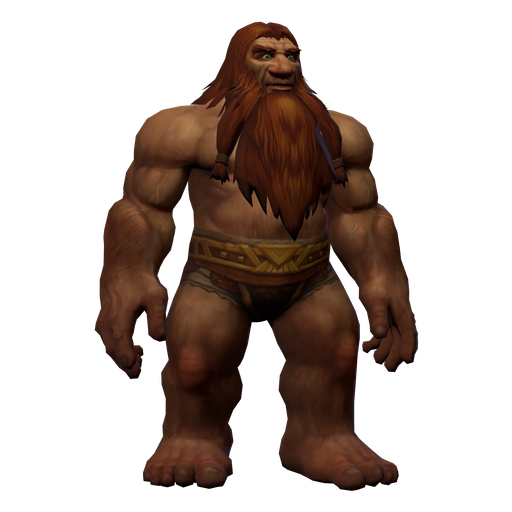
Twitch emotes are square images at three sizes: 112, 56 and 28 pixels. Every character render on this site comes with exactly those three files, cropped to the head and shoulders and saved as transparent PNGs, so there is nothing to resize or cut out.
- Open the render page for the race you want and download Twitch emote 112, Twitch emote 56 and Twitch emote 28.
- Go to your Twitch Creator Dashboard, open Viewer Rewards, then Emotes. Emote slots are available to Affiliates and Partners.
- Choose an empty slot and pick the option to upload each size yourself rather than letting Twitch resize one image.
- Upload the 112, 56 and 28 px files into their matching boxes. Each file is a PNG well under Twitch's 1 MB limit.
- Type the emote code suffix your viewers will use, choose the tier or follower slot, and save. Twitch reviews new emotes before they go live in chat.
Check the 28 px preview before you save. That is the size most viewers see in chat, and a face reads far better there than a full figure.
Animated emotes on Twitch use their own, much smaller GIF limits, so the 480 px dance loops on this site are meant for Discord, chat and stream overlays rather than for an emote slot.
Ready-made files
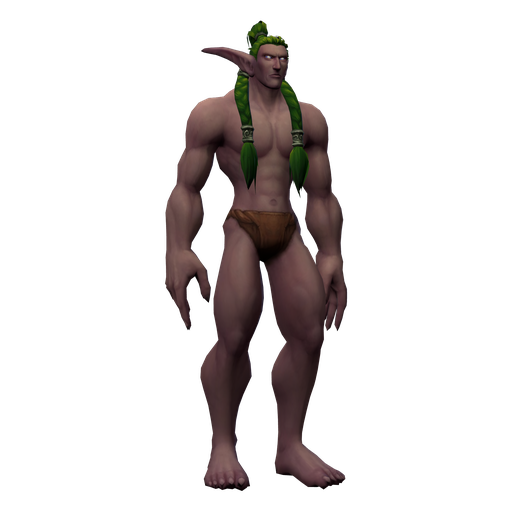
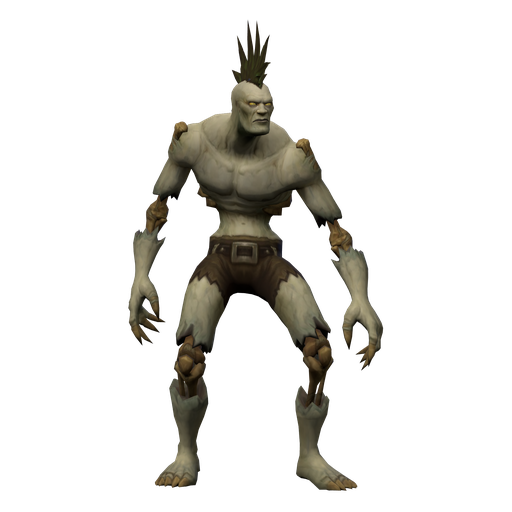
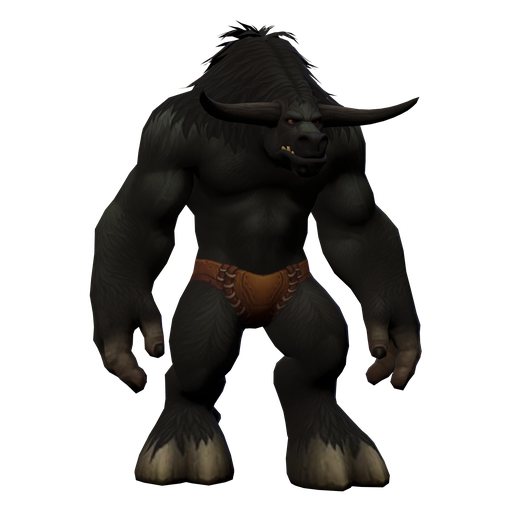


Model and animation © Blizzard Entertainment. Fan reference, not affiliated.