 TheWoWDB

ItemClassicRetailClassicForever
Sword Unsheath
The ring of a metal weapon being drawn.
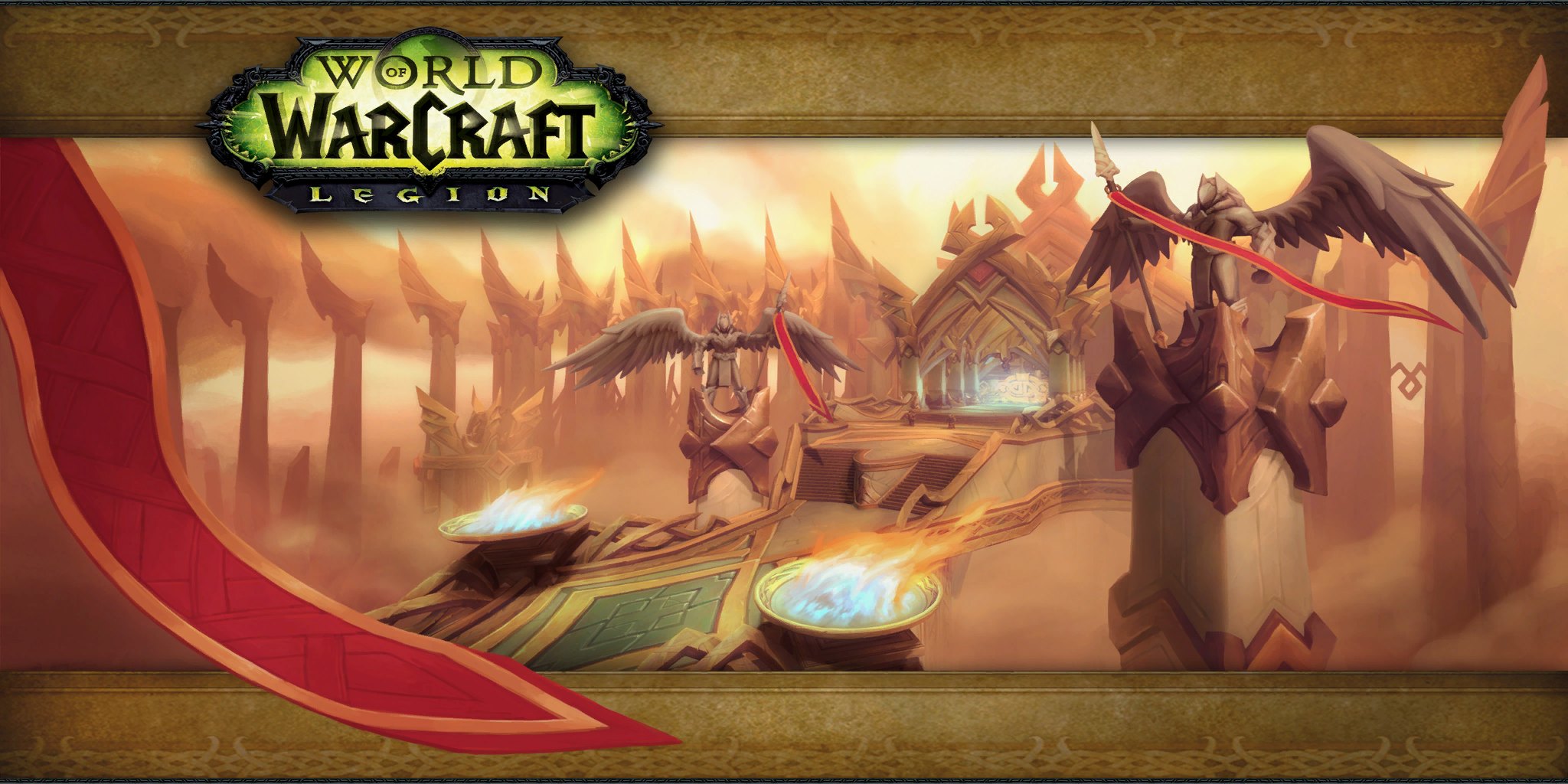
Art: Halls of Valor loading screen · Blizzard Entertainment. Halls of Valor: blades drawn
0:00 / 0.7s
Where you hear it
unsheathmetal.ogg is the ring of steel being drawn. It plays when a character enters combat or when you toggle weapons with Z. Its partner file sheathmetal.ogg plays when you put the weapon away. The sound is short and sharp. It is a satisfying, dramatic ringtone or notification.
TriggerPlays when your character draws a metal weapon, such as on entering combat or pressing Z.
In the game client
| Client path | sound/interface/unsheathmetal.ogg |
|---|---|
| FileDataID | 567473 |
| Expansion | Classic |
| Game versions | Retail, Classic, Forever |
| Duration | 0.7s |
| Sample rate | 22,050 Hz |
| Channels | Mono |
| MP3 size | 10 KB |
| M4R size | 6 KB |
| OGG size | 7 KB |
Use it as
Ringtone
On a phone call the 0.7-second Sword Unsheath clip is over in a blink, so set it to loop and let it repeat until you answer.
Notification sound
Over a text, a 0.7-second ring of steel registers instantly and is hard to confuse with a stock phone chime.
Discord soundboard
On a soundboard the 0.7-second Sword Unsheath clip lands and finishes before anyone has to stop talking.
iPhone
- Tap iPhone ringtone (.m4r) above and choose Download.
- Open the Files app, go to Downloads and open the file.
- Tap Share, then Use as Ringtone (iOS 26).
- Pick it in Settings, Sounds & Haptics, Ringtone or Text Tone.
Android
- Tap Download MP3 above.
- Open Settings, Sound & vibration, then Phone ringtone or Default notification sound.
- Tap My sounds, then +, and pick the MP3 from Downloads.
Discord
- Download the OGG or MP3 above.
- Open Server Settings, Soundboard, Upload Sound, and pick the file.
- Name it and choose an emoji. You need the Manage Expressions permission.
Discord takes clips up to 5.2 seconds and 512 KB; this one fits.
Windows
- Windows sound schemes only take WAV files, so convert the MP3 to WAV first (Audacity or any audio converter does it in one export).
- Open Settings, System, Sound, More sound settings, then the Sounds tab.
- Pick an event such as Notification, click Browse, choose the WAV, then Apply.
OBS alert
- Download the MP3 above.
- In your alert tool (Streamlabs or StreamElements) set it as the alert sound file.
- Or in OBS add a Media Source with the MP3, untick Loop, and fire it with a hotkey.
Related sounds


On TheWoWDB
Audio © Blizzard Entertainment. Fan reference, not affiliated.