 TheWoWDB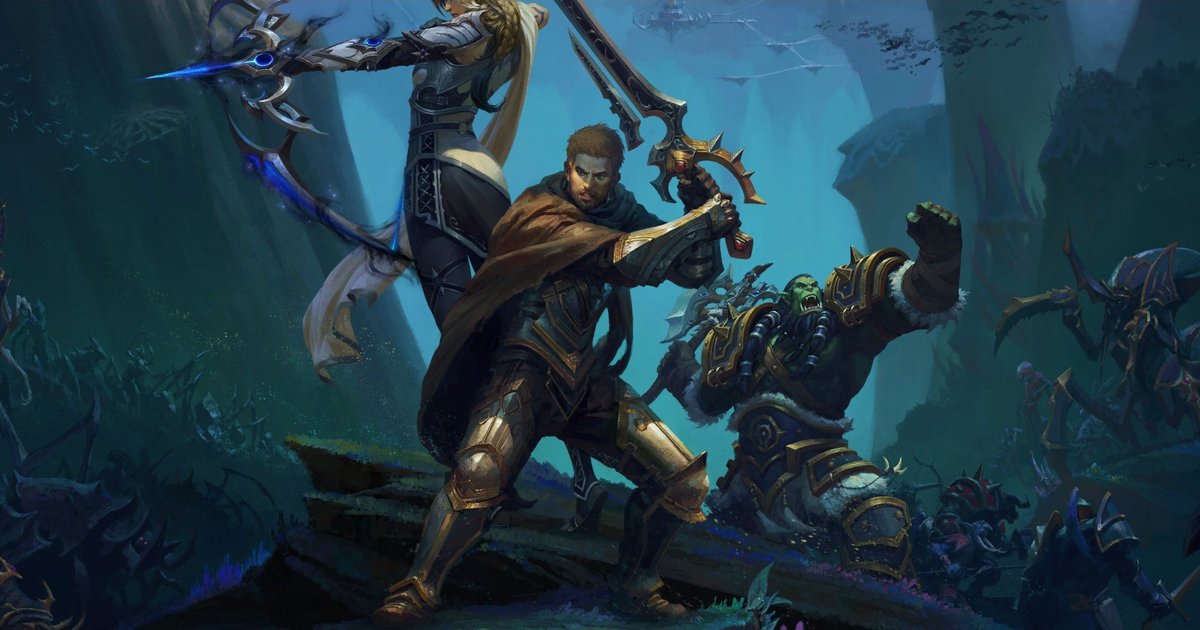
World of Warcraft wallpaper
The War WithinLoading screen
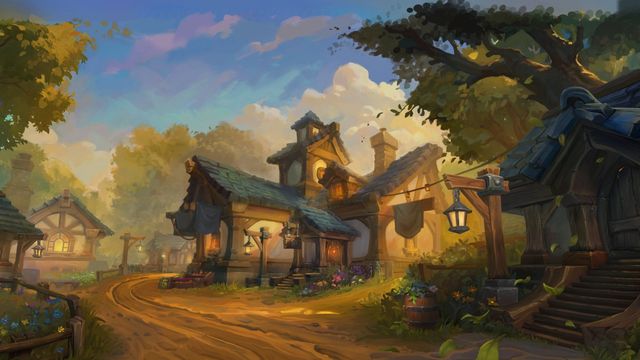
Khaz Algar (Surface) Wallpaper
6 device sizes, cut from the client art with the focal point kept in frame.
Art: Khaz Algar (Surface) · Blizzard Entertainment.
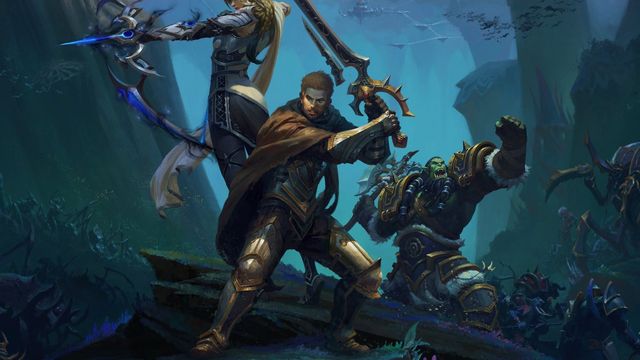
This is the Khaz Algar (Surface) loading screen, the art the game shows while it loads you into that place (The War Within). The wallpaper keeps the painting's focal point in frame for every screen shape.
Phone

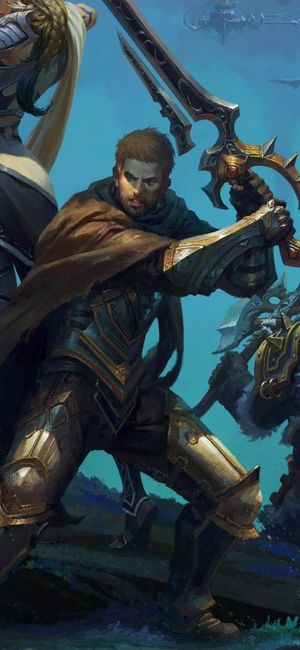
Download 1290 x 2796iPhone 15 Plus / Pro Max / 16 PlusUpscaled 2.4x from the 2992 x 1150 source · 417 KB


Desktop


About this art
| Type | Loading screen |
|---|---|
| Group | The War Within |
| Source art | 2992 x 1150 px |
| Client FileDataID | 5899485 |
| Sizes on this page | 6 |
Set it as your wallpaper
iPhone
- Open the wallpaper's page on your iPhone and tap the iPhone download that matches your model.
- When Safari shows the image, press and hold it, then tap Save to Photos (or tap the Downloads arrow and open the file first).
- Open the Photos app, open the wallpaper, tap the Share button and choose Use as Wallpaper.
Android
- Open the wallpaper's page on your phone and tap the Android download.
- Open the downloaded image from the notification, or from Files > Downloads.
- Tap the three-dot menu and choose Set as wallpaper (Samsung Gallery: Set as wallpaper; Google Photos: Use as).
Windows
- Download the desktop size that matches your display resolution.
- Open the Downloads folder, right-click the image and choose Set as desktop background.
- For more control, open Settings > Personalization > Background, pick Picture, browse to the file and set Choose a fit to Fill.
macOS
- Download the 1440p desktop size, or 4K where the wallpaper offers it.
- In Finder, open Downloads, right-click the image and choose Set Desktop Picture.
- Or open System Settings > Wallpaper, click Add Folder or Photo, and pick the file.
More wallpapers
 Ara-Kara, City of EchoesPhoneDesktop
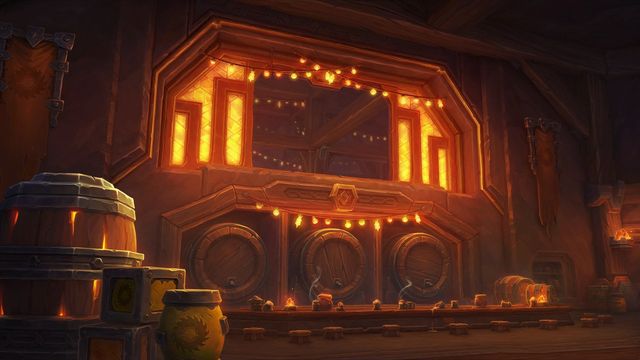 Cinderbrew MeaderyPhoneDesktop
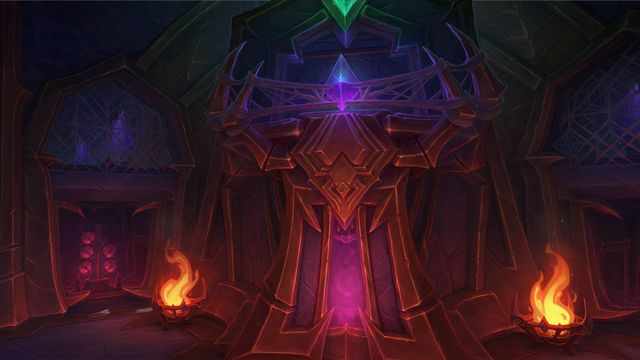 City of ThreadsPhoneDesktop
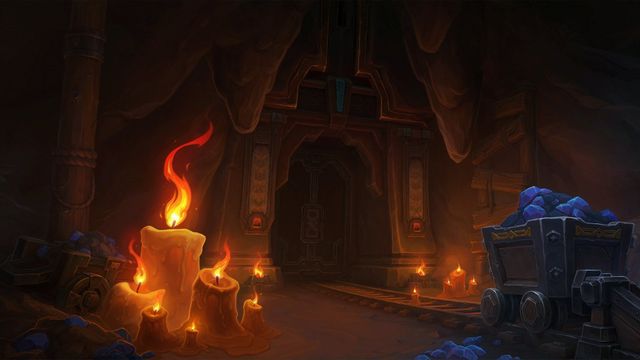 Darkflame CleftPhoneDesktop
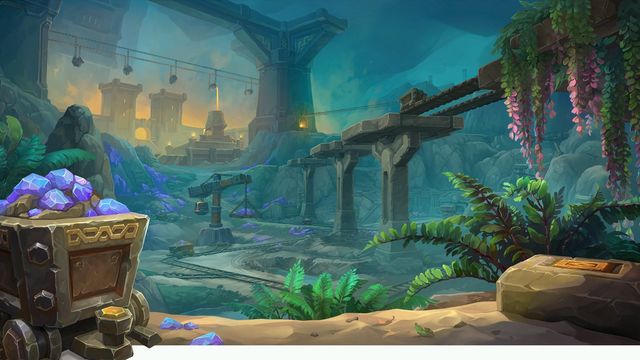 Deephaul RavinePhoneDesktop
 Founder's PointPhoneDesktop
Art © Blizzard Entertainment. Fan reference, not affiliated.