 TheWoWDB

InterfaceCataclysmRetail
Guild Level Up
Fanfare from the era when guilds themselves had levels.
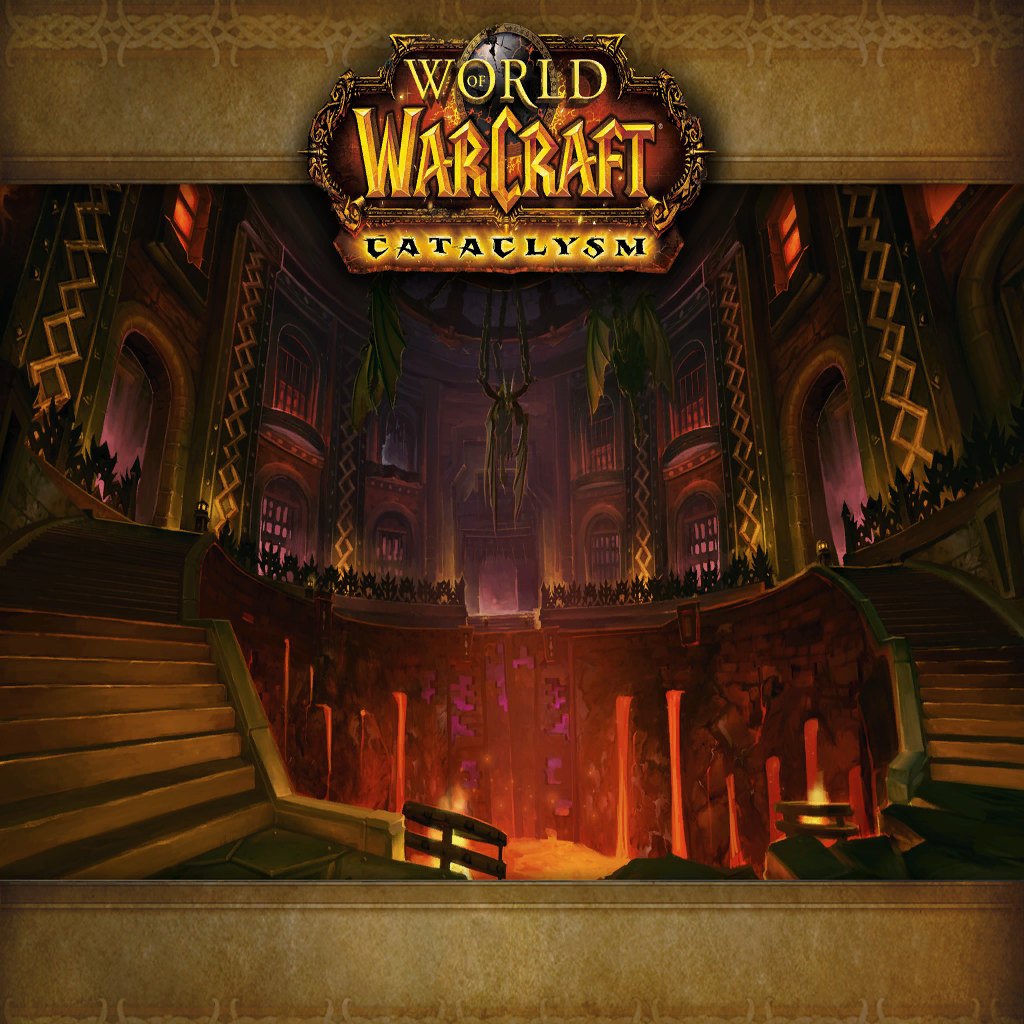
Art: Blackwing Descent loading screen · Blizzard Entertainment. Blackwing Descent: Cataclysm, the guild-level era
0:00 / 4.7s
Where you hear it
ui_guildlevelup.ogg belonged to the guild levelling system introduced with Cataclysm. Members earned guild experience together through quests, dungeons and raids, and each new level unlocked perks such as mass resurrection or faster mounted speed. When a level was reached, every online member heard this fanfare at once. The system was retired in Warlords of Draenor, but the file stayed in the client. It now survives as an audible relic of a feature many guilds miss.
TriggerPlayed to all online members when a guild reached a new guild level.
In the game client
| Client path | sound/interface/ui_guildlevelup.ogg |
|---|---|
| FileDataID | 567528 |
| Expansion | Cataclysm |
| Game versions | Retail |
| Duration | 4.7s |
| Sample rate | 22,050 Hz |
| Channels | Stereo |
| Loudness | -13.9 LUFS |
| MP3 size | 75 KB |
| M4R size | 65 KB |
| OGG size | 43 KB |
Use it as
Ringtone
Guild Level Up runs 4.7 seconds, enough for one full play before most people pick up, and it loops back cleanly.
Notification sound
Over a text, a nearly five-second fanfare registers instantly and is hard to confuse with a stock phone chime.
Discord soundboard
On a soundboard the 4.7-second Guild Level Up clip lands and finishes before anyone has to stop talking.
iPhone
- Tap iPhone ringtone (.m4r) above and choose Download.
- Open the Files app, go to Downloads and open the file.
- Tap Share, then Use as Ringtone (iOS 26).
- Pick it in Settings, Sounds & Haptics, Ringtone or Text Tone.
Android
- Tap Download MP3 above.
- Open Settings, Sound & vibration, then Phone ringtone or Default notification sound.
- Tap My sounds, then +, and pick the MP3 from Downloads.
Discord
- Download the OGG or MP3 above.
- Open Server Settings, Soundboard, Upload Sound, and pick the file.
- Name it and choose an emoji. You need the Manage Expressions permission.
Discord takes clips up to 5.2 seconds and 512 KB; this one fits.
Windows
- Windows sound schemes only take WAV files, so convert the MP3 to WAV first (Audacity or any audio converter does it in one export).
- Open Settings, System, Sound, More sound settings, then the Sounds tab.
- Pick an event such as Notification, click Browse, choose the WAV, then Apply.
OBS alert
- Download the MP3 above.
- In your alert tool (Streamlabs or StreamElements) set it as the alert sound file.
- Or in OBS add a Media Source with the MP3, untick Loop, and fire it with a hotkey.
Related sounds

Achievement Earned 5.2s
The achievement toast sound, filed under the client's own misspelling 'achievment'.

Level Up (Alternate) 5.0s
A second level-up fanfare stored next to the original ding in the interface folder.

Ready Check 2.9s
The raid leader's ready check: a sharp bell that demands a click on Ready or Not Ready.


Auto Quest Complete 3.5s
Pop-up quest completion cue for quests you can finish without walking back to the giver.
On TheWoWDB
Audio © Blizzard Entertainment. Fan reference, not affiliated.